> For the complete documentation index, see [llms.txt](https://docs.aqua-cloud.io/documentation/llms.txt). Markdown versions of documentation pages are available by appending `.md` to page URLs; this page is available as [Markdown](https://docs.aqua-cloud.io/documentation/desktop-client/test-management/test-execution/autosave-of-a-test-execution.md).
# Autosave of a test execution
Enable autosave during test executions to prevent data loss and ensure your latest changes are always stored automatically in the desktop client.
The autosave feature in the Test Execution module allows your progress to be saved automatically as you work, ensuring data security and minimizing the risk of losing important information due to unexpected events like system crashes or connectivity issues.
Autosave is disabled by default for all users.
You can enable autosave feature per project. To do it, first navigate to the **Project settings.**
Then check the "Autosave the test execution" option and click the 'Save' button.
{% hint style="info" %}
**Please note:**
If **Actual Results are Mandatory** is enabled, then it's not possible to enable autosave and vice versa.
If **Autosave** is enabled, it's not possible to make actual result mandatory.
{% endhint %}
Autosave should save changes upon the following actions:
* Modifying step status.
* Updating actual results.
* Adding/removing labels.
* Linking defects.
* Modifying test run fields.
* Adding/removing attachments.
* Adding screenshots.
**Test execution**
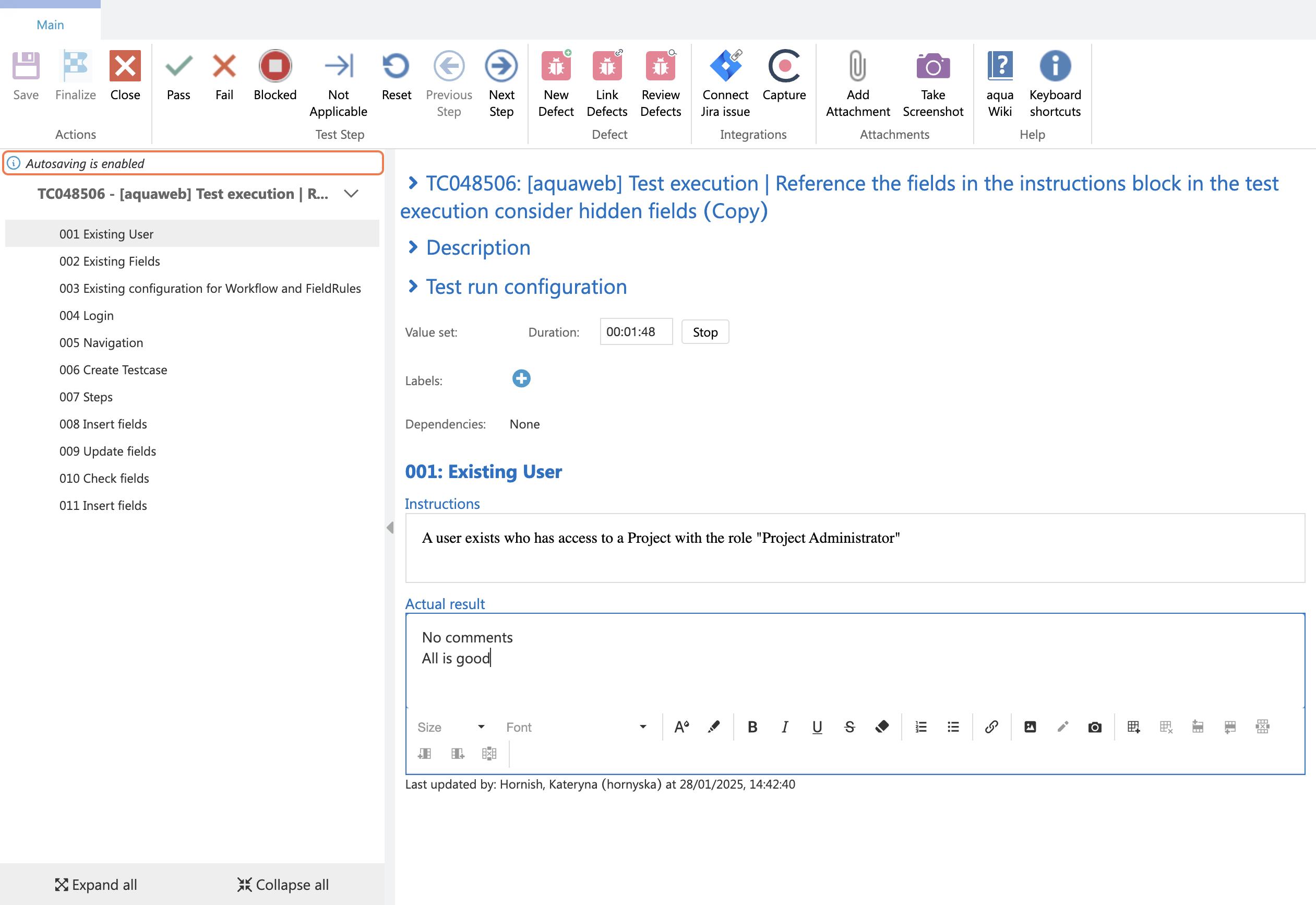
Start executing your test case. There should be an indicator that autosave is enabled. Then add necessary information to your step or make changes to the fields.
Observe the "Autosave is in progress" indicator to ensure the feature is active. Continue working without worrying about manually saving your progress.
If needed, refresh the page or return to the test case, and your latest changes will remain intact.
---
# Agent Instructions
This documentation is published with GitBook. GitBook is the documentation platform designed so that both humans and AI agents can read, navigate, and reason over technical content effectively. Learn more at gitbook.com.
## Querying This Documentation
If you need additional information that is not directly available in this page, you can query the documentation by asking a question.
Perform an HTTP GET request on the following URL with the `ask` and `goal` query parameters:
```
GET https://docs.aqua-cloud.io/documentation/desktop-client/test-management/test-execution/autosave-of-a-test-execution.md?ask=&goal=
```
`ask` is the immediate question: it should be specific, self-contained, and written in natural language.
`goal` is what the user is ultimately trying to achieve, the reason they need the answer. Sharing it helps GitBook give you a better, more relevant answer. A goal is most helpful when it describes the outcome the user wants rather than restating the question. For example, with `ask=how do I create an API token`, a goal like `automate deployments from our CI pipeline` lets GitBook tailor the answer to that use case.
The response will contain a direct answer to the question and relevant excerpts and sources from the documentation.
Use this mechanism when the answer is not explicitly present in the current page, you need clarification or additional context, or you want to retrieve related documentation sections.