> For the complete documentation index, see [llms.txt](https://docs.aqua-cloud.io/documentation/llms.txt). Markdown versions of documentation pages are available by appending `.md` to page URLs; this page is available as [Markdown](https://docs.aqua-cloud.io/documentation/product-updates-for-on-premise-customers/product-updates/2023/23.102.0-on-premise.md).
# 23.102.0 - On Premise
Stay informed with concise release notes for version 23.102.0 On-Premise - featuring the latest enhancements and fixes for your enterprise deployment.
Guidelines
Version 23.102\
Date: 07.09.2023
## Linked Jira Issues in Reports: Know more!
\
Useful when:
* You are using aqua and Jira and want to create a comprehensive report for your stakeholders to provide update on the project's status
* You need to see Jira issues in the reports after test runs are done for the audit purposes
Guide:\
\
Navigate to the ‘Reports’ page and either select the report you want to modify or create a new one.
Then, at the ‘Edit properties’ step, select when you want the Jira issue to be loaded
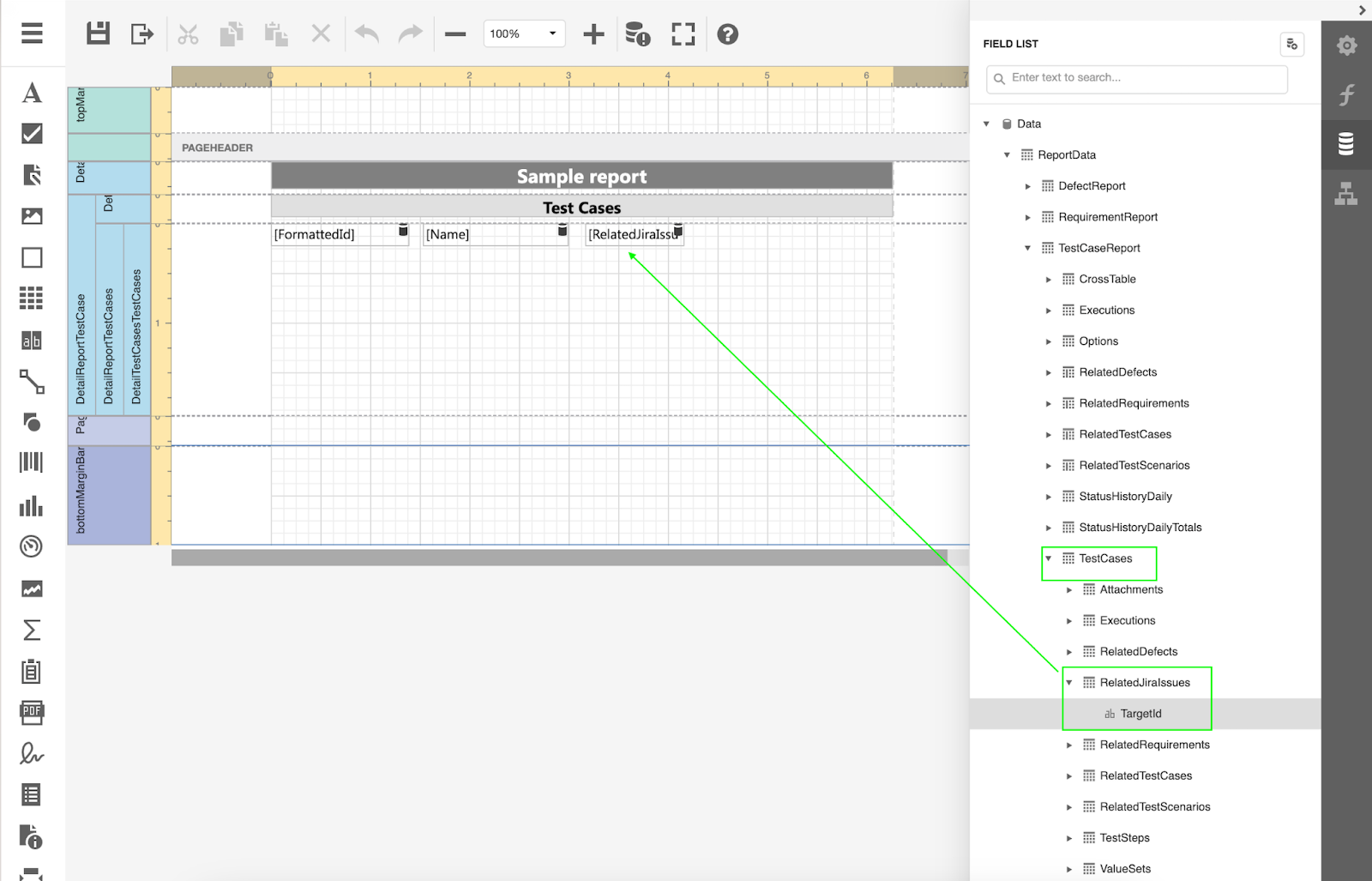
Go back to the layout step, navigate to the following group, and add the label to your layout.
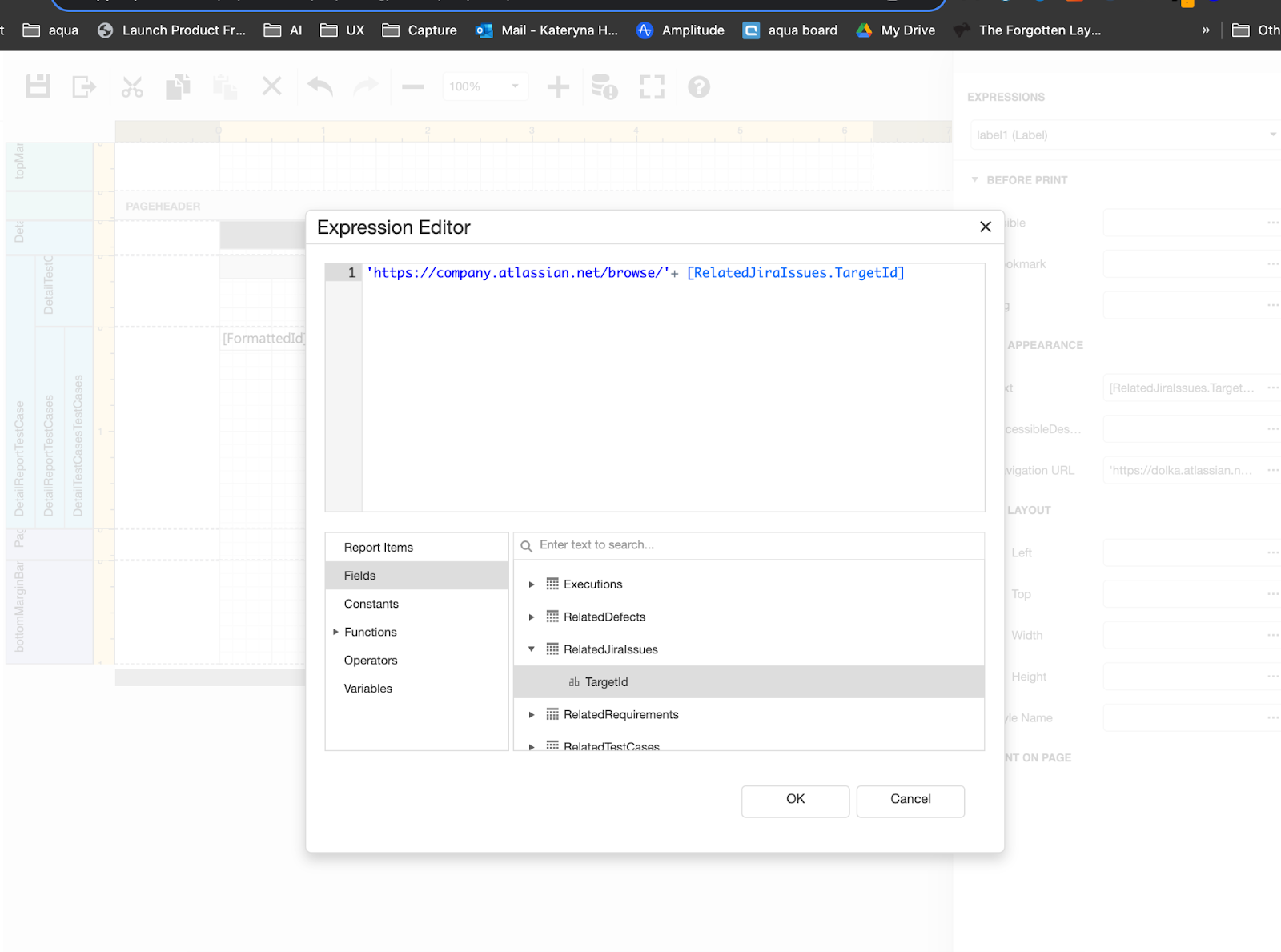
You can also reference a link to the Jira issue. To do so, click on the added label and once the expression sidebar opens, click on the 3-dot menu next to the ‘Navigation URL’ field.
Add your base Jira URL to the issues, with apostrophes before and after the URL. Then, add plus and navigate to the `‘Fields’` section, expand '`RelatedJiraIssues’` and doubleclick on `‘TargetId’,` and save the report.
Once you generate the report, there will be a link to the Jira issue that is linked with your aqua test case or any other item you referenced in the report.
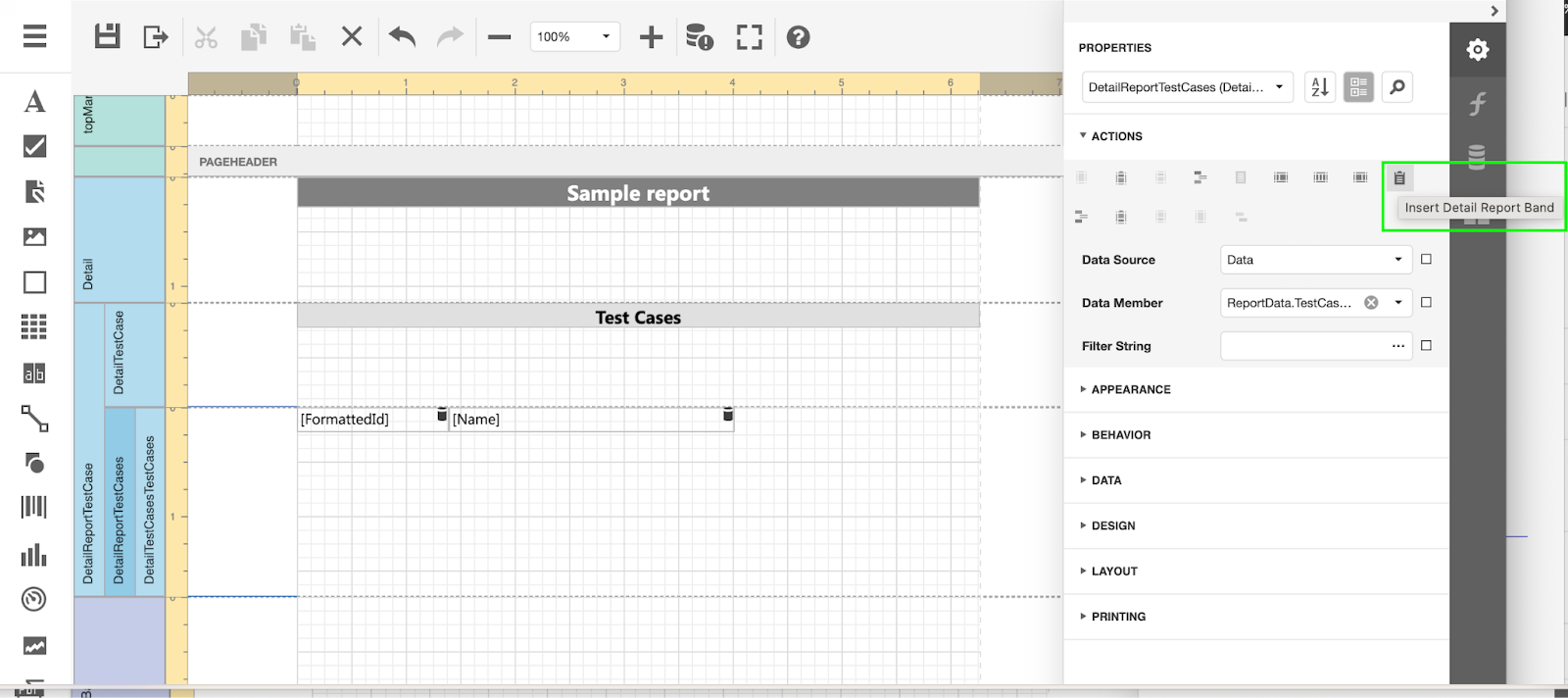
If you want to include multiple Jira issues, click on the ‘DetailReport \[itemtype] section when creating the report.
On the ‘Properties’ sidebar under the ‘Actions’ group, click on the ‘Report Band’.
Once you do that, the new block will be added to the layout.
For ‘Data Source’, select the ‘Data’ property; for ‘Data Member’, select the ‘Related Jira issues‘ property.
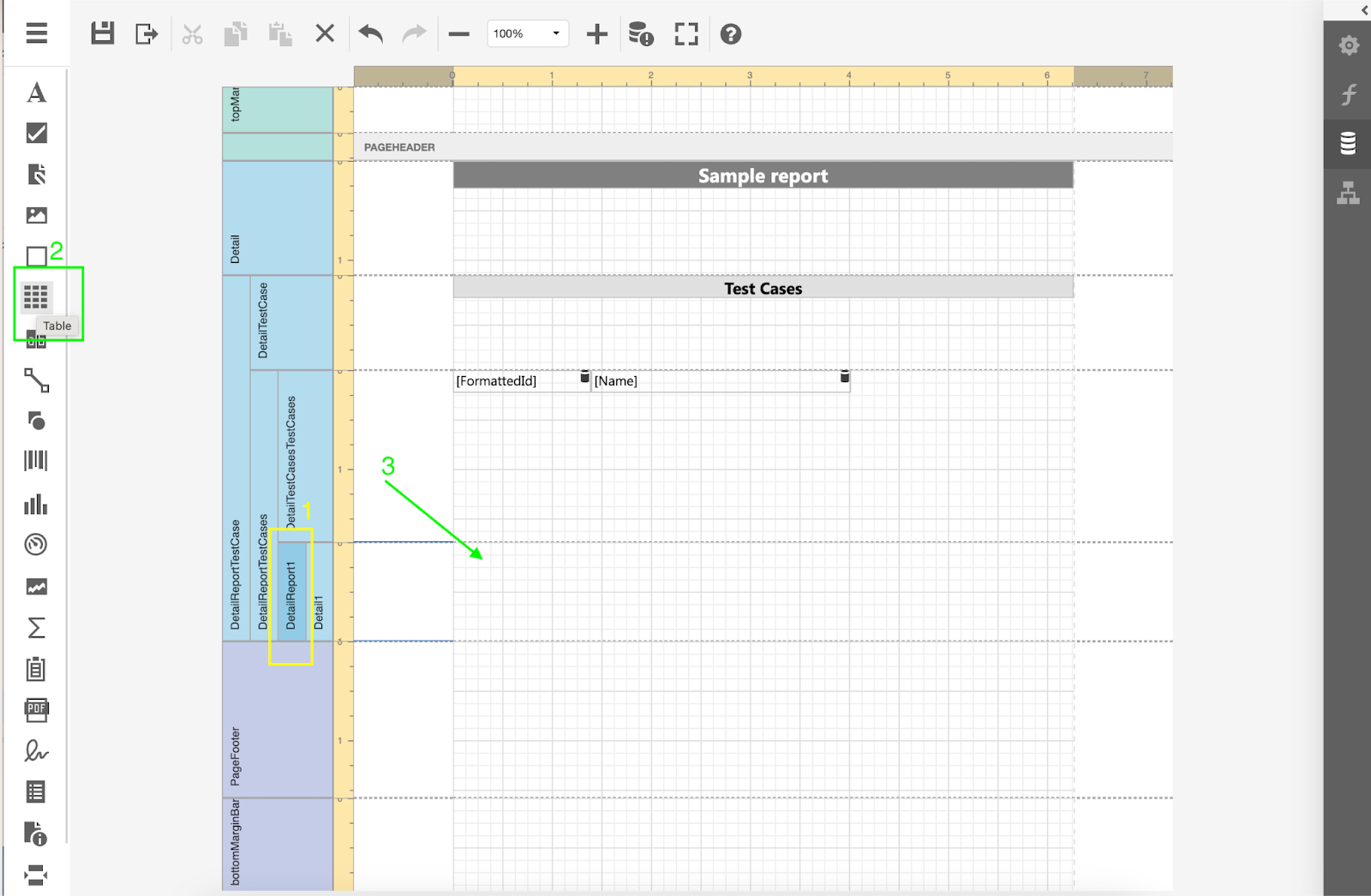
Now, select ‘DetailReport1’ and drag and drop e.g. table to the page.
\
Leave as many cells as you need, then go the Field list’, select 'Report Data' -> 'TestCaseReport' -> 'TestCases' -> 'RelatedJiraIssues' and then drag and drop to the cell ‘TargetId’
Save your report and once you generate it, all linked Jira issues will be included into your report.
New Integrations Page Look and Feel – Your Integration Superpower!\
--------------------------------------------------------------------------------------------------------------------------------------------------------------------------------------------------------------------------
Useful when:
* You want to have an overview, which project has an integration
* You want to see if there is a connection to Jira to make sure that integration is successful
* You are looking forward to new integrations and want to provide some feedback
\
Guide:
\
Open the 'Integrations' page, and you'll land on the 'Global' tab. Here, you can set up a single integration that applies to all the projects you have in aqua.
Choose the integration, such as Jira, and then click the 'Configure' button.
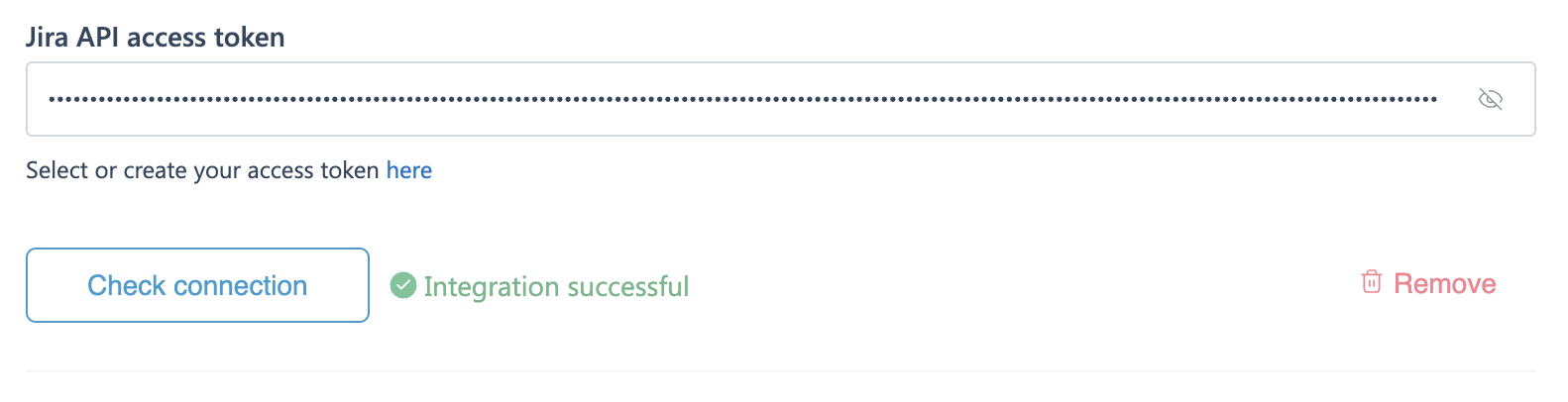
Enter all the necessary details and click 'Check connection.' If all your credentials are correct, you'll see the following message:
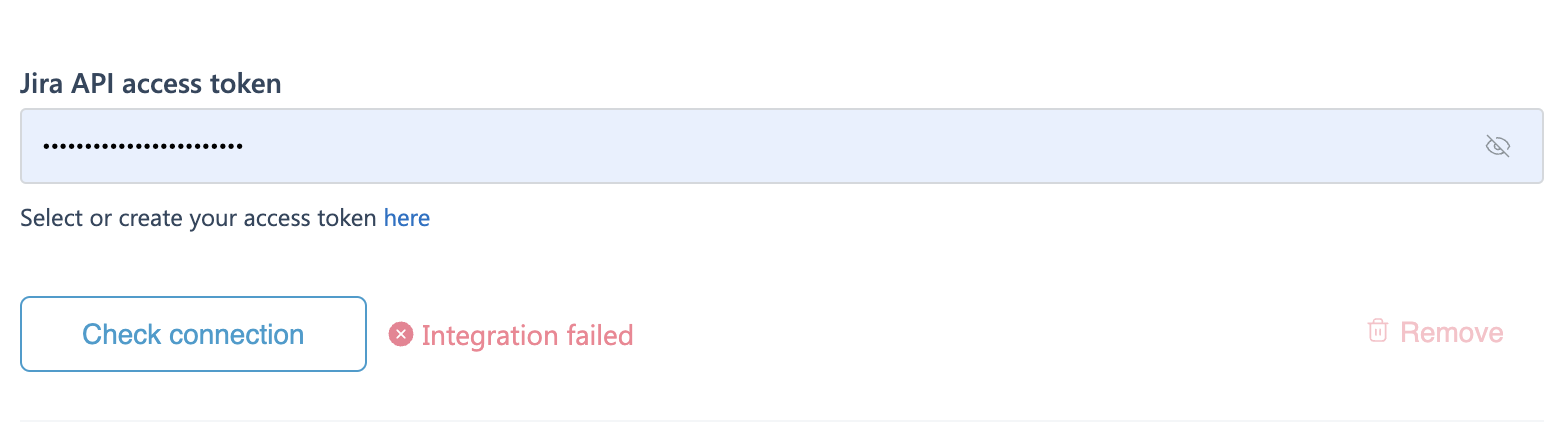
If your credentials are incorrect, you'll encounter the following message:
To finish the integration set up, don’t forget to click the ‘Save’ button.
\
You can also set up the integration on a project level, either from the main Integrations page or within the project settings.
Once you've created an integration on a project level, you'll find a tile under the project tab that displays the added integration and which project it's associated with.
{% hint style="info" %}
It's important to note that project-level configuration takes precedence over the global configuration.
{% endhint %}
\
Additionally, moving forward, if your project is put on hold, or you need to make adjustments, there's no need to remove the integration entirely. You can simply disable it and re-enable it as needed.
This means that users won't have the ability to preview or link issues or tickets to aqua projects while it’s disabled, but everything becomes available again as soon as the integration is re-enabled.
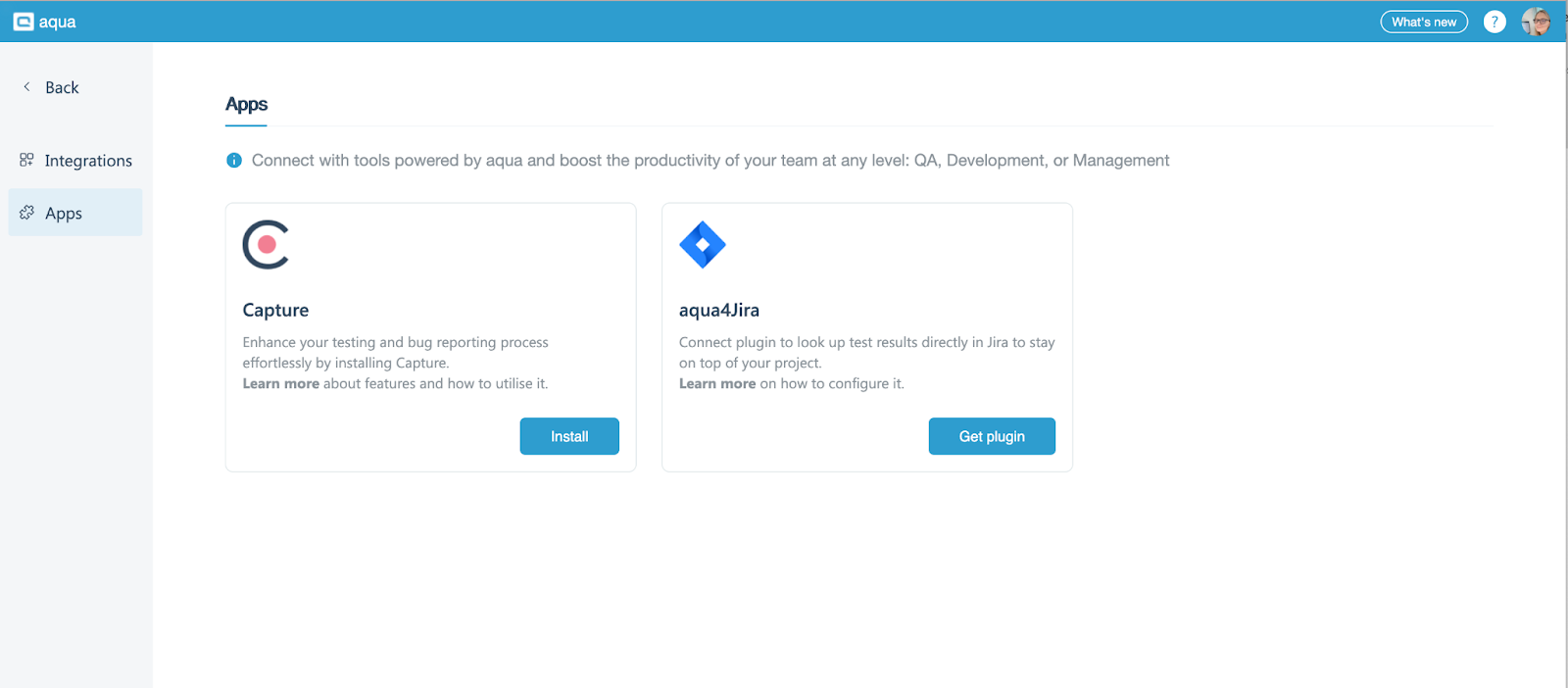
We also added the page with aqua apps that you can download and utilise for free. Learn more [here](https://docs.usecapture.io/help-articles) about Capture and [here ](/documentation/integrations/aqua4jira-plugin-cover-jira-issue-with-aqua-test-cases.md)about the Jira plugin if you haven’t used it yet.
Got a wish-list of integrations you'd love to see? We're all ears! Access the survey from the ‘Integrations’ page and tell us what you're dreaming of.
## Test Execution: Your Choice, Your Pace
\
Useful when:
* You want to resume an incomplete test and pick up right where you left off, ensuring that the effort already invested in the test is not wasted
* You want to ensure that there are no unfinished text executions and user don’t populate unnecessary runs
Guide:
From now on, aqua will automatically prompt you once there is a previous unfinished test execution.
Just press the ‘New Run’ button and you’ll see the pop-up. Select ‘Continue’ if you want to resume the previous run. In case you want to start a new one, just click ‘New run’
Please note: aqua will show you this pop up only if the last test execution is not completed. It won’t be shown in case you have old recorded uncompleted test executions.
## Dashboard Bliss: Fresh Look, Effortless Management
Benefits:
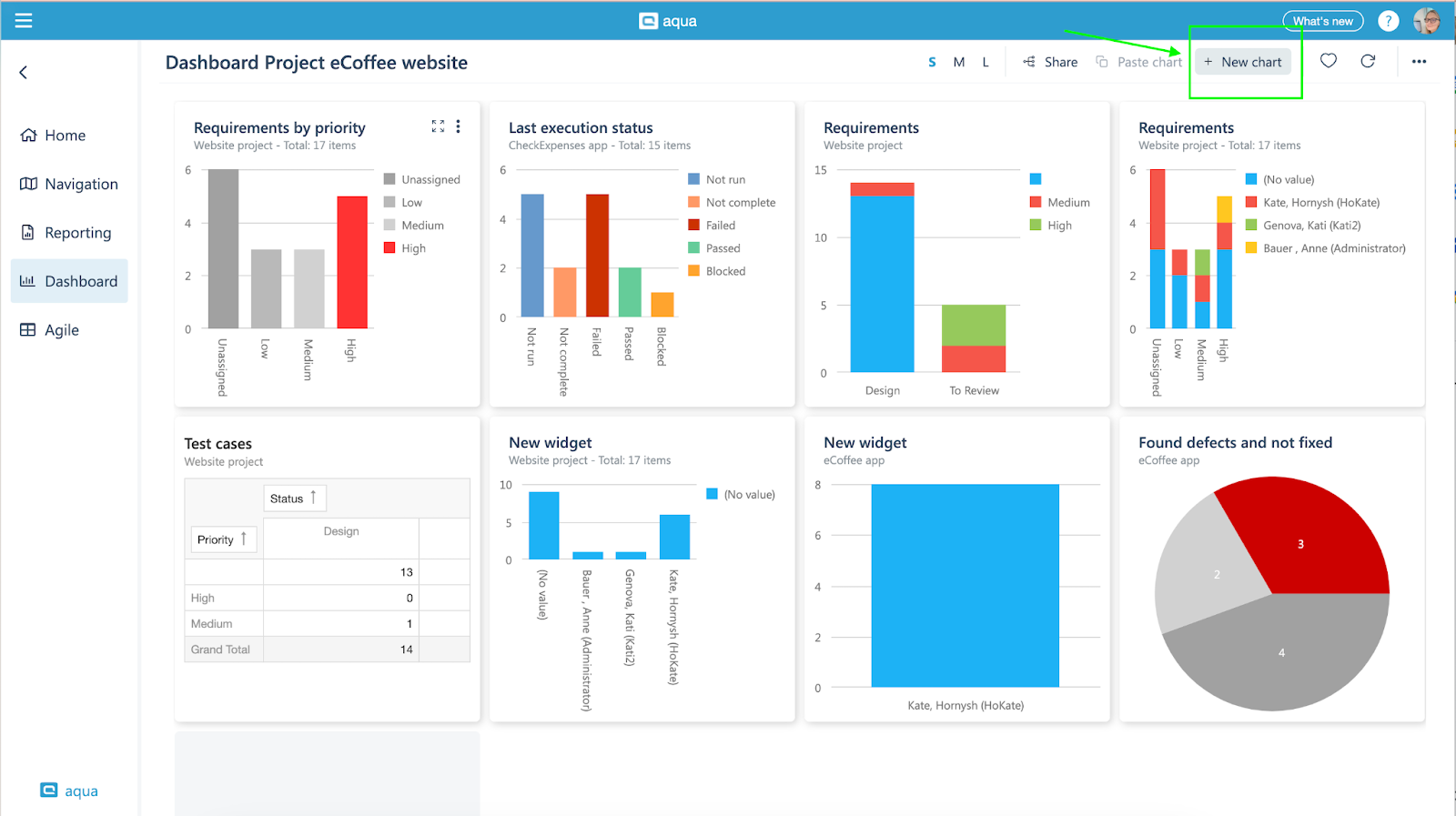
* The enhanced dashboard design: you now have the power to create new charts from multiple locations with ease.
* Everything you need is thoughtfully organized in header, sidebar and dropdowns, ensuring that locating and utilizing it is effortless.
Guide:
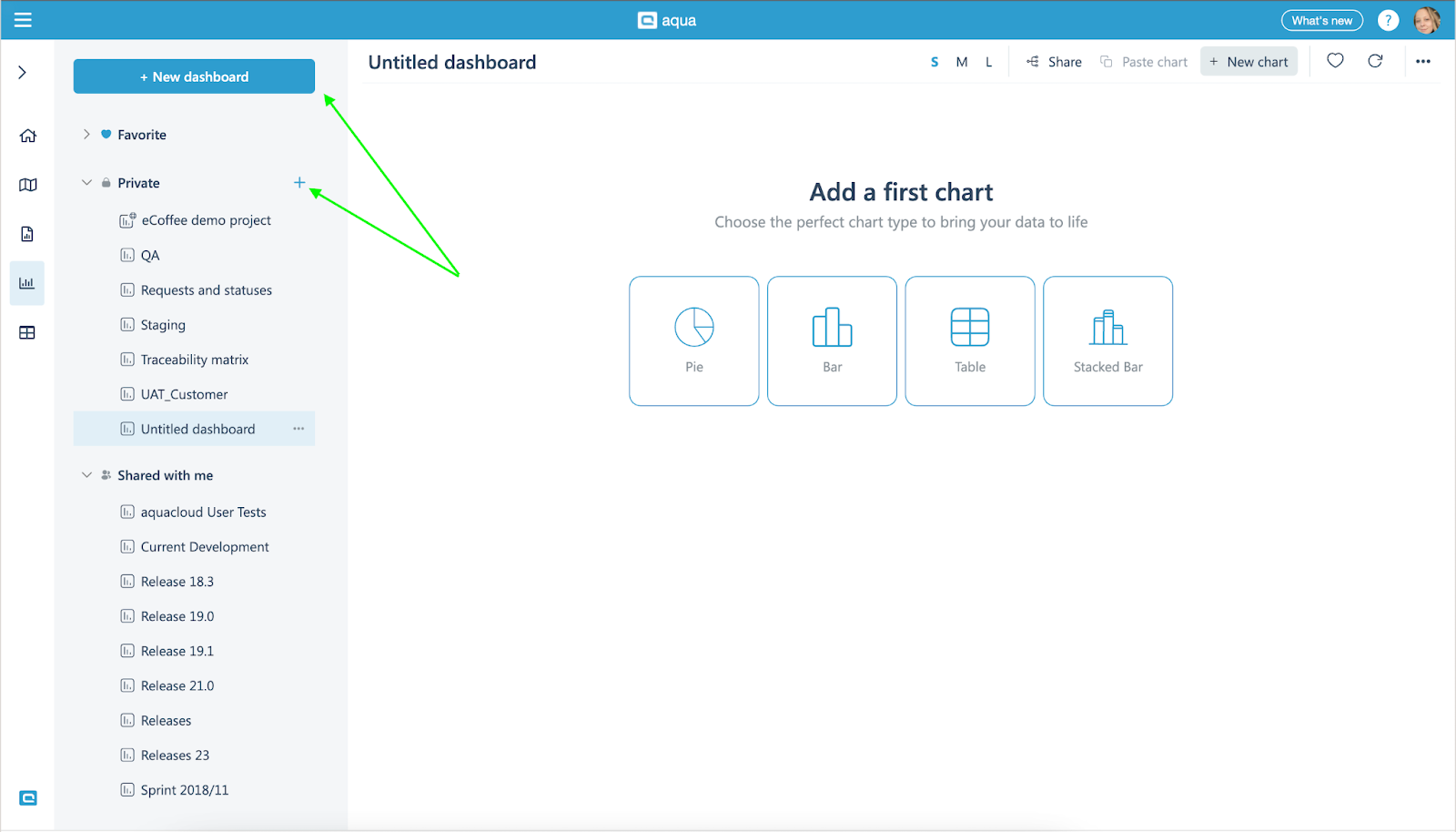
Create the dashboard from multiple locations by clicking the corresponding option
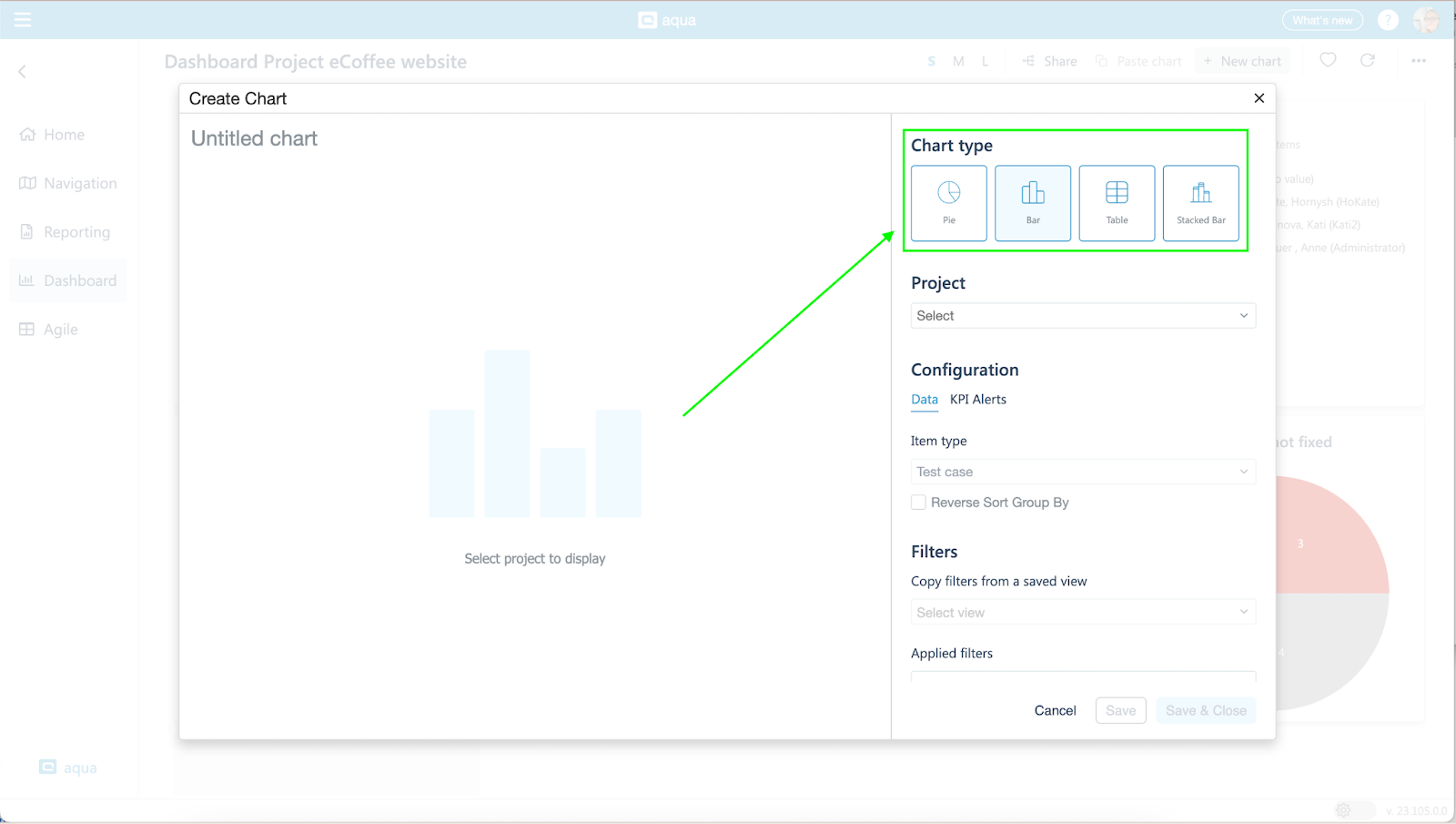
Select the type of the chart you want to create and connect the data to display afterwards.
All main options are logically grouped at the header and easily accessible for you whenever you need to update the title, change the size of the chart, share it or copy and add to another dashboard.
New Look and Feel for Chart Creation: A Dash of Wow!\
--------------------------------------------------------------------------------------------------------------------------------------------------------------------------------
Benefits:
* Streamlined Chart Creation: Easier to select and change the chart types
* Customization Power: With the revamped chart creation, you gain more control over the appearance and behaviour of your charts.
Guide:
Open the dashboard and click on the 'New Chart' button.
Once the modal window appears, choose the type of chart you'd like to use.
Next, select the project or specific folder containing the data you want to use for your chart and the item type.
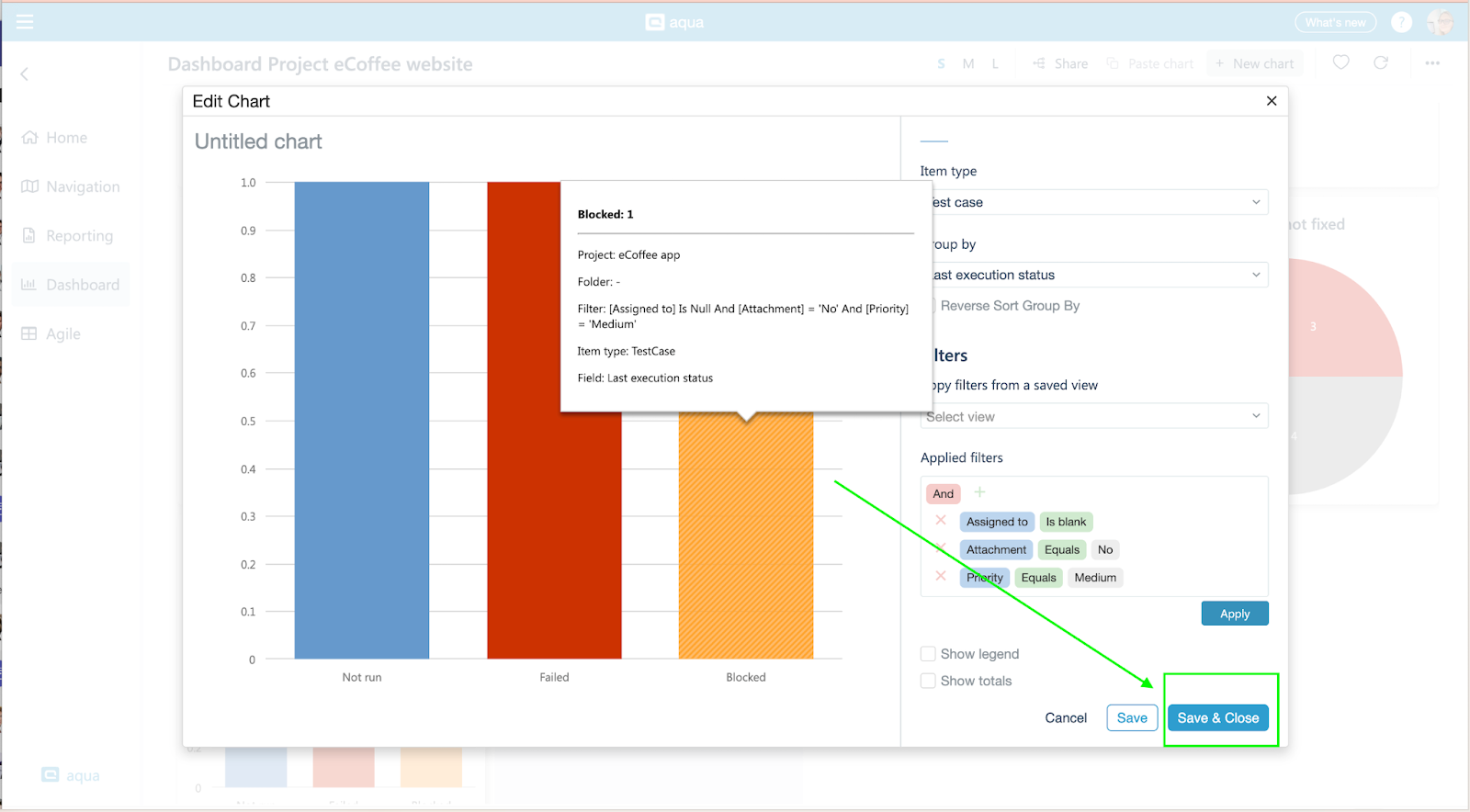
Make any necessary adjustments by applying filters and selecting additional details you want to display. Finally, click the 'Save' button to preview your chart.
If you're satisfied with how the data is presented, simply click 'Save & Close.'
If you wish to make adjustments or change the chart type, no worries; make the necessary changes and click the 'Save' button again.
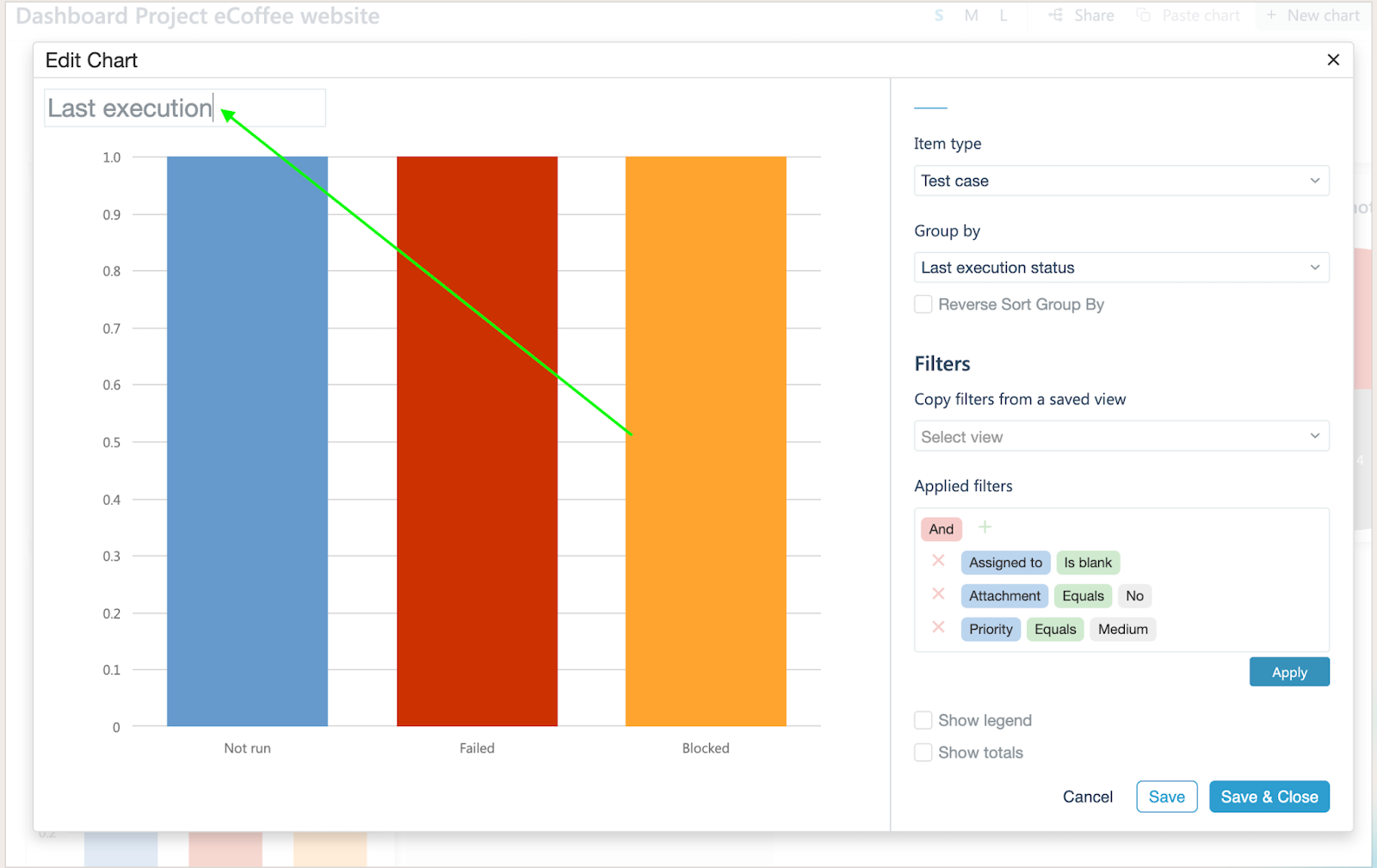
Don't forget to provide a title for your chart so you can easily understand the data it presents.
Small UX Tweak: Project and Item Creation Made a Breeze\
-------------------------------------------------------------------------------------------------------------------------------------------------------------------------------------------
Benefits:
* More intuitive and user-friendly approach that reduces the learning curve for new users and minimizes the steps required to manage projects and their associated items.
* Option to create it from a tree view enhances the overall user experience and reduces the potential for errors.
Guide:
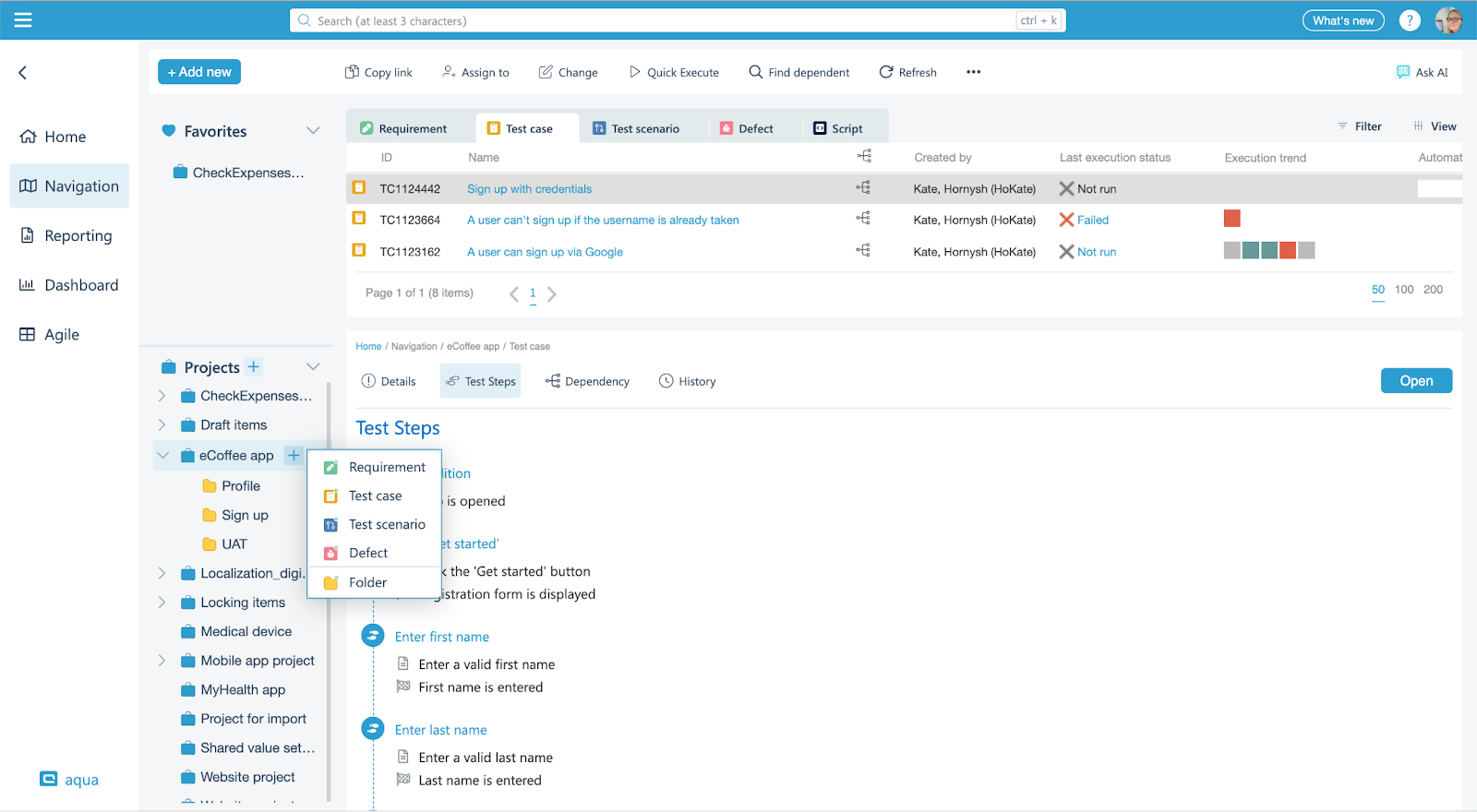
Creating a project becomes even easier. Just click the 'Plus' icon next to the 'Project' label.
We haven't removed this option from the dropdown, so you can use either method based on what's more convenient for you.
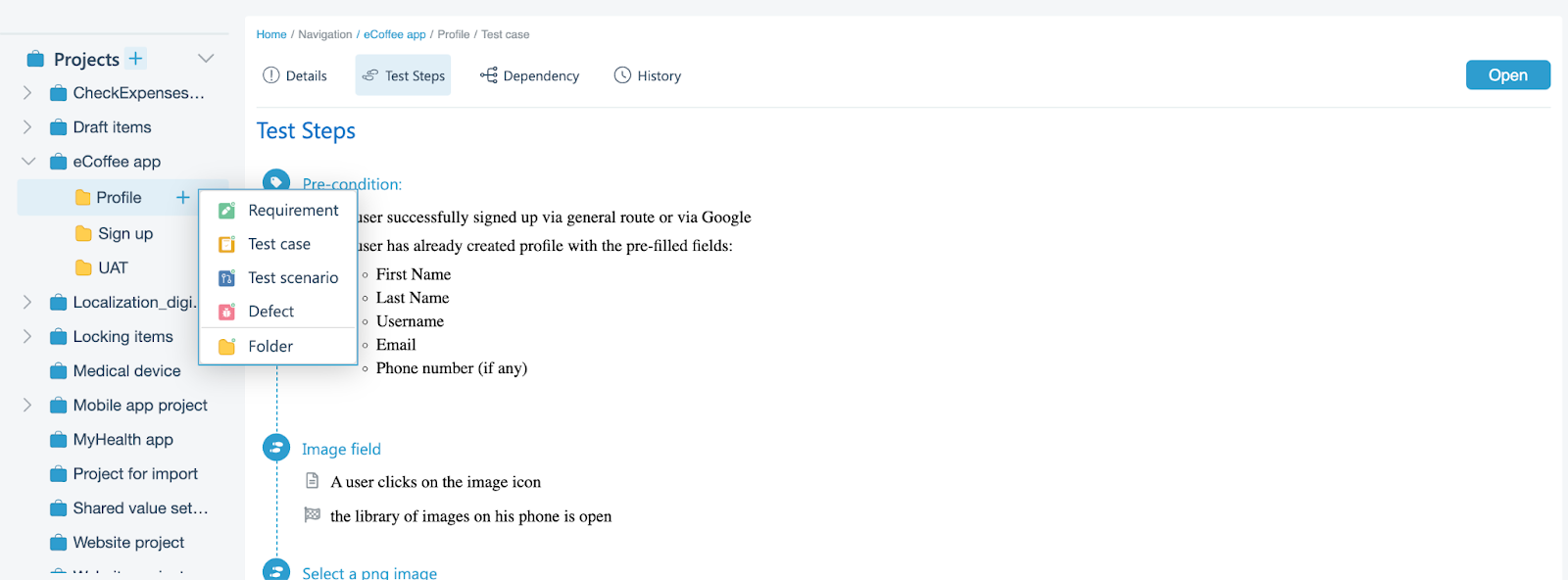
To create an item or folder within a specific project, first select the project, and the plus icon will appear. Click on it, and choose the option you need.
If you want to create an item within a folder or subfolder, select the folder and click on the 'Plus' icon that appears. Then, perform the same actions as described above.
\
Single Tab Ticket Management: Tab-tastic Efficiency
---------------------------------------------------
Useful when:
* You are annoyed by juggling multiple tabs to access different items and want to open the item in the same tab
* You want a clutter-free window and ease navigation between the tabs
* You need to easily navigate to the main page whenever it’s needed and save time on opening the new tab with aqua navigation page
\
Guide:
Whenever you need to open the item, just do it the same way as you did before: either click on the item title or the ‘Open’ button.
The ticket will open in the same tab without populating separate tabs.
In case you need to go back, just click the ‘Back to main’ button, and you’ll get back to the ‘Navigation’ page.
\
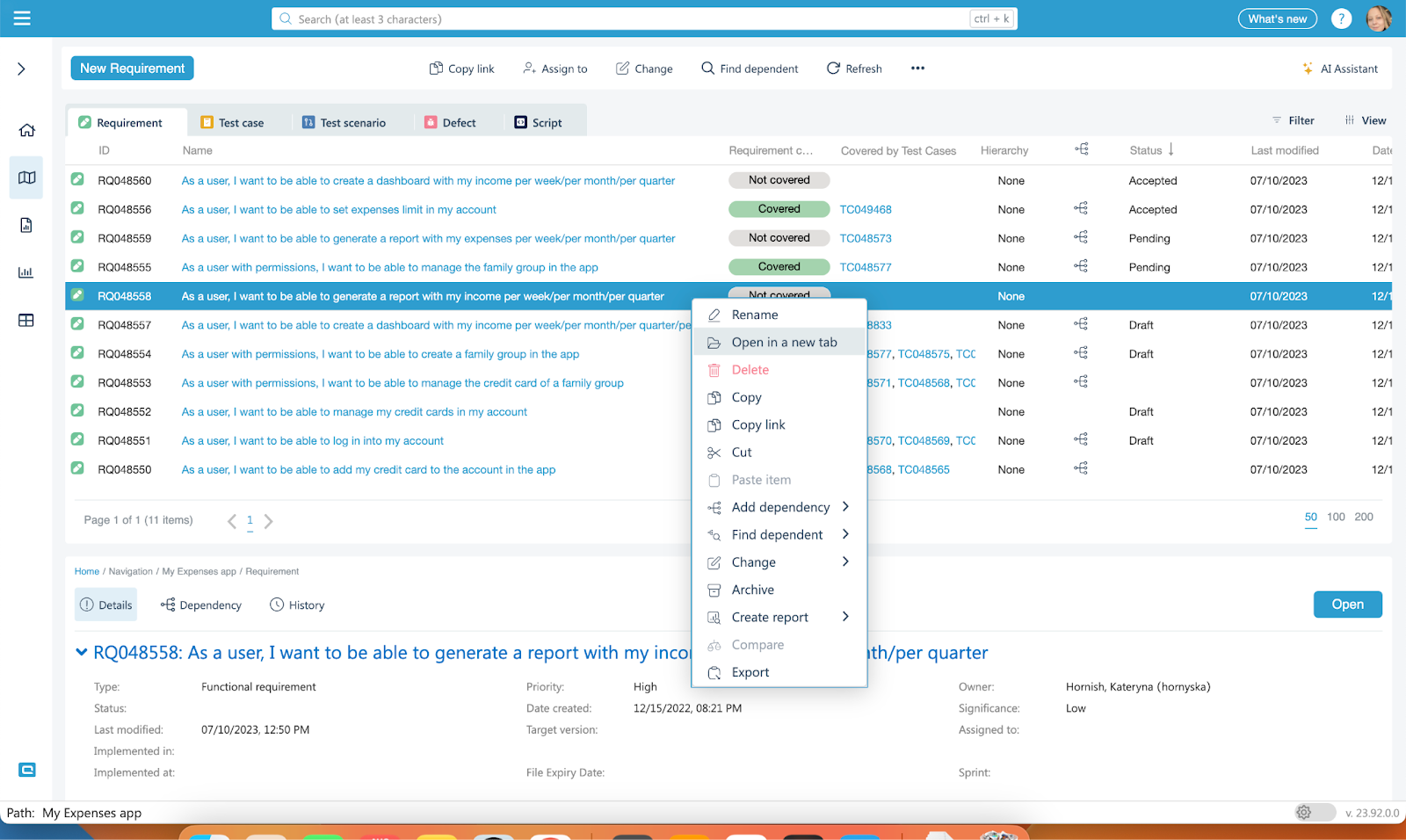
When you need to open multiple items, just click on the item and click on the ‘Open in a new tab’ option in the context menu.
## Drag and Drop Columns: Effortless Navigation Tweaks
Useful when:
* You want to easily add the column to the exact place to the item grid
\
Guide:
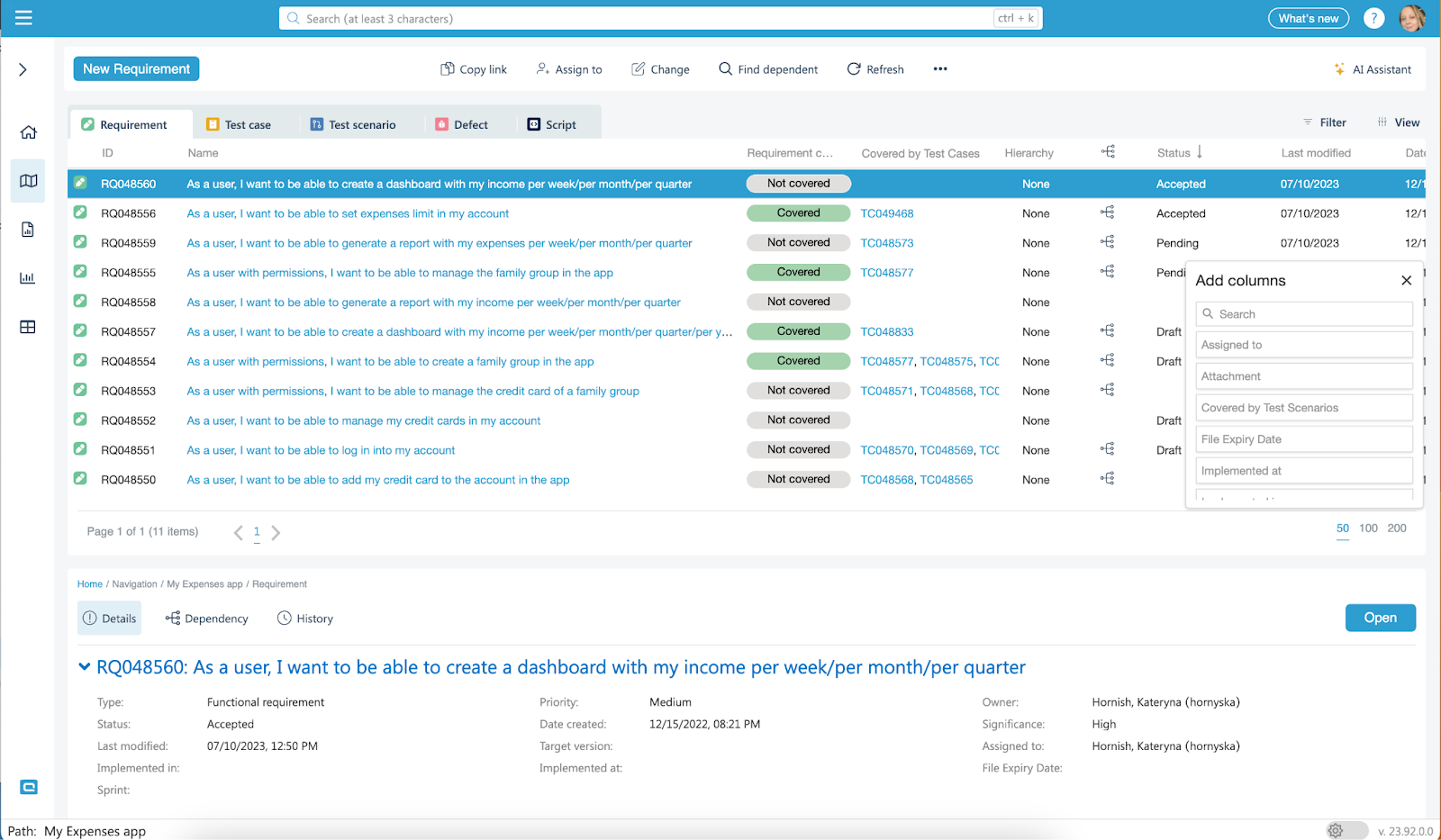
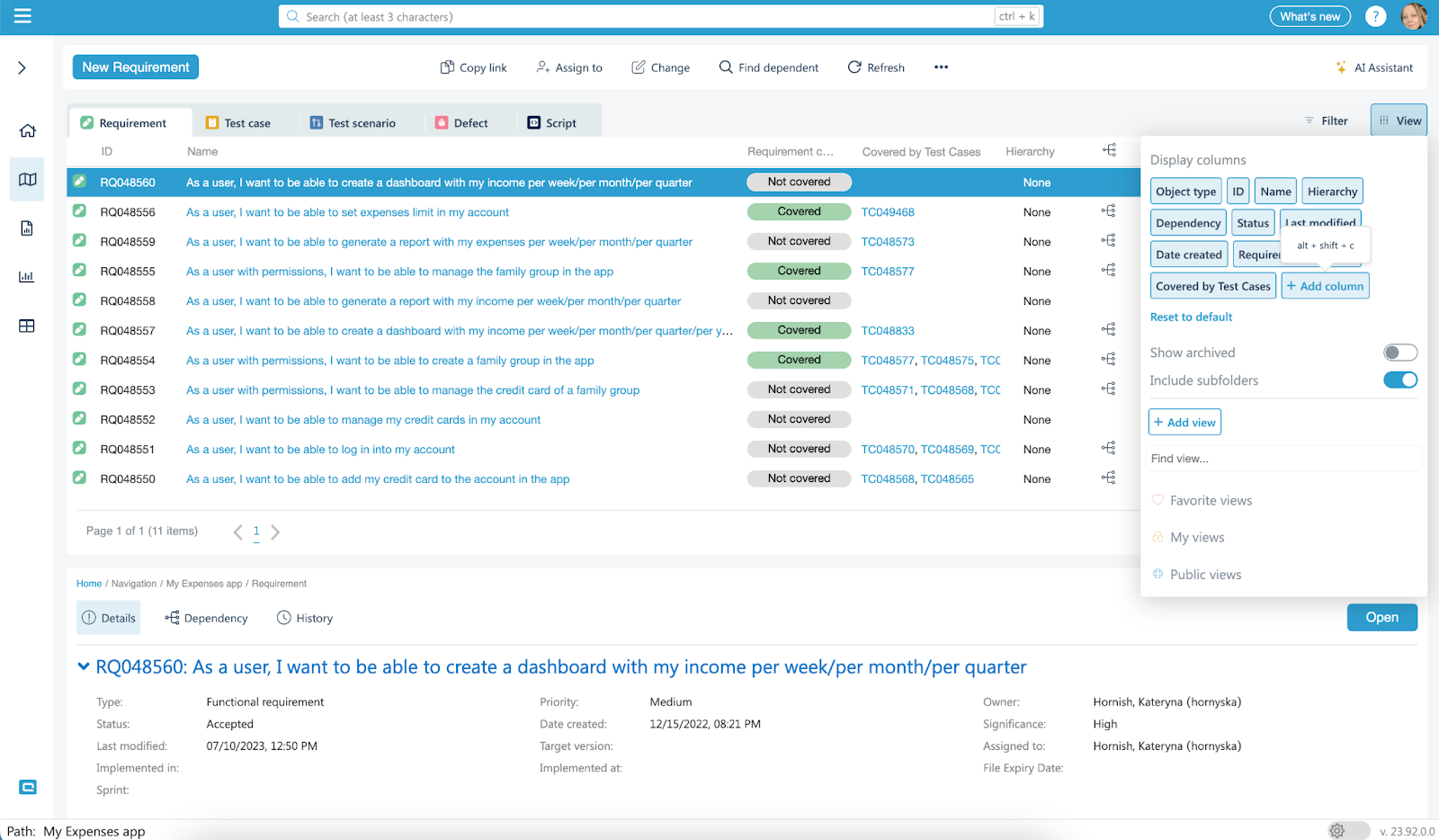
Whenever you need to drag and drop a new column to the grid, you can use the Alt+Shift+C shortcut. The column chooser will appear, and you can drag and drop items to the exact place on the grid.
Alternatively, you can easily see the whole list of the columns by enabling the ‘View’ sidebar and then clicking the ‘Add column’ button. The same column chooser will appear, allowing you to select data you want to display.
{% hint style="info" %}
In case you don’t have these feature guidelines at hand in the future, we got you covered. You can find all the information on the new features in our [aqua wiki](/documentation/web-client/getting-started.md).
We continue to make aqua beneficial and easy to use. The upcoming releases will bring both new powerful features and user experience improvements, and we can’t wait to share them with you.
In the meantime, let us know if you have any questions or share feedback at support\@aqua-cloud or
{% endhint %}
---
# Agent Instructions
This documentation is published with GitBook. GitBook is the documentation platform designed so that both humans and AI agents can read, navigate, and reason over technical content effectively. Learn more at gitbook.com.
## Querying This Documentation
If you need additional information that is not directly available in this page, you can query the documentation by asking a question.
Perform an HTTP GET request on the following URL with the `ask` and `goal` query parameters:
```
GET https://docs.aqua-cloud.io/documentation/product-updates-for-on-premise-customers/product-updates/2023/23.102.0-on-premise.md?ask=&goal=
```
`ask` is the immediate question: it should be specific, self-contained, and written in natural language.
`goal` is what the user is ultimately trying to achieve, the reason they need the answer. Sharing it helps GitBook give you a better, more relevant answer. A goal is most helpful when it describes the outcome the user wants rather than restating the question. For example, with `ask=how do I create an API token`, a goal like `automate deployments from our CI pipeline` lets GitBook tailor the answer to that use case.
The response will contain a direct answer to the question and relevant excerpts and sources from the documentation.
Use this mechanism when the answer is not explicitly present in the current page, you need clarification or additional context, or you want to retrieve related documentation sections.