> For the complete documentation index, see [llms.txt](https://docs.aqua-cloud.io/documentation/llms.txt). Markdown versions of documentation pages are available by appending `.md` to page URLs; this page is available as [Markdown](https://docs.aqua-cloud.io/documentation/desktop-client/versioning.md).
# Versioning
Effortlessly manage and navigate the Desktop Client documentation. Access versioning details and related resources to optimize your desktop application experience.
**Version Management**
aqua offers the user the option to manage versions of all elements such as requirements, defects, test cases and test scenarios. This allows you to store auditable requirements, test cases and defects. It enables you to work with different versions of elements and to restore the old document status of individual elements. Changes can be easily tracked by the software cycle and are displayed visually. New or alternative versions of elements can be managed.
**Item Version**
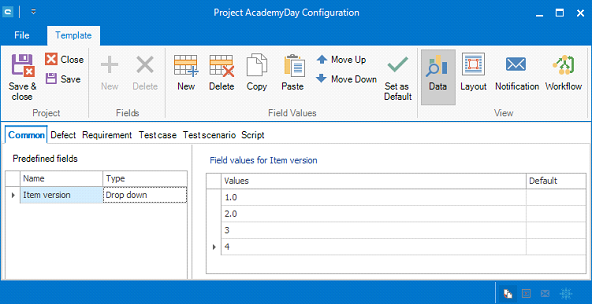
The key element is `Item version` which specifies the versions of elements. (Project Configuration -> Template)
The values for `Item version` can be edited by using the corresponding buttons. In addition, a default value for all newly created elements can be set. Metric scales (e.g. 3.4 or 5.0) and non-metric code names (e.g. 4.0 beta, lollipop, jelly beans) can be used. To create a new version of an element, select this element in the navigation and select `Create New Version` in the context menu.
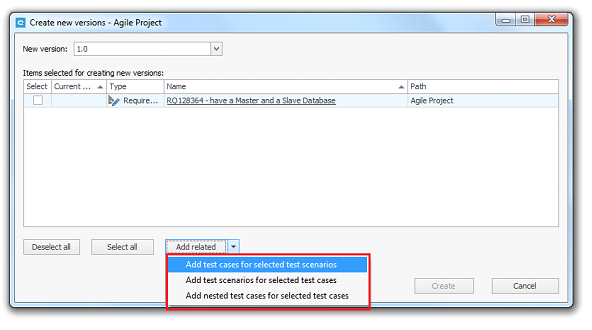
This opens a dialogue window in which the new version can be selected. The new version of an element must always be higher than the version from which it is created. This linear hierarchy is defined by the ranking of the values of the value `Item version`.
You can expand the choice of elements for the creation of a new version by selecting some more elements in the element browser and selecting `Include in create new version dialog` within the context menu.
To add all relevant elements of one or more elements, select `Find dependent` in the context menu.
As a simplification, aqua offers the option to include the new version of test cases of a test scenario by choosing the `Add related` button.
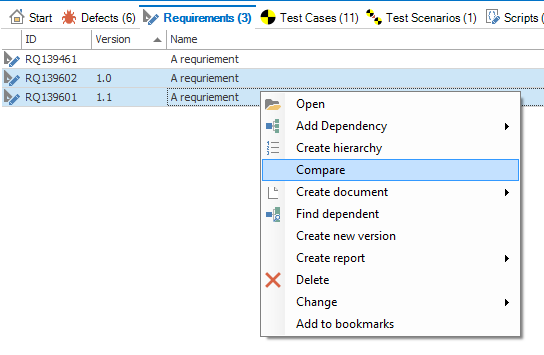
The `Version` column provides information on the version of the element. The elements can be listed, grouped, or sorted by version. You can also create filters for an individual representation of the elements.
The dependencies of the individual elements can also be viewed within the context menu or the `dependencies` button. It displays which element is the newer, the older, or an alternative version.
aqua displays the version hierarchy dependencies graphically. In order to clearly make the differences between versions of elements, you can use the `Compare` function for two selected elements.
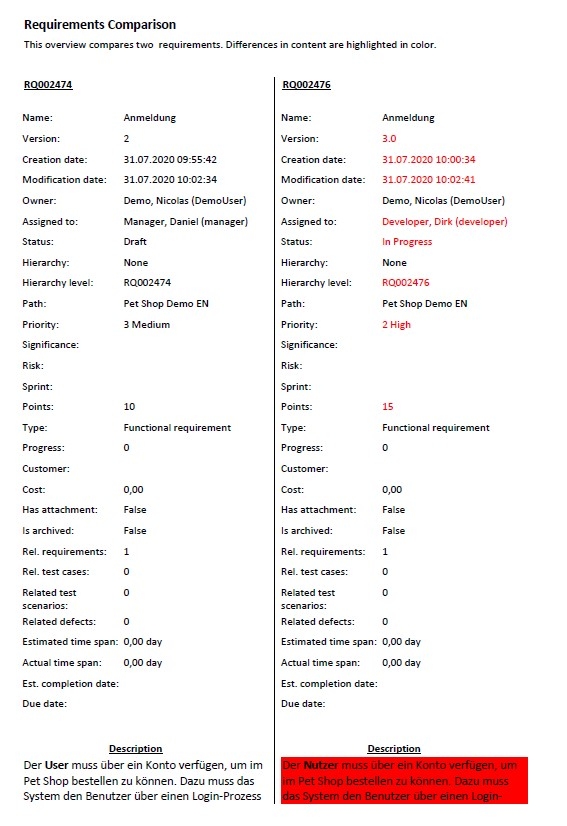
By selecting `Compare` in the context menu, aqua generates a so-called, `DiffReport` which highlights the differences between two items by means of colours. If the button is grayed out, you have to import the `DiffReports.aquarep` report template in the aqua report module.
You can also compare versions of test cases. The `DiffReportsTC.aquarep` report template is required for this. You can download both report templates [here](https://cdn.andagon.com/aquawiki/Reporting/DiffReports.zip).
The report templates compare all standard fields and the descriptions of the two items and, in the case of test cases, also the associated steps including the individual step descriptions.
{% hint style="warning" %}
Do not rename the report template names.
{% endhint %}
**Modifying the Report**
If you want to modify the report to your needs, you can use the report designer to remove or replace fields within the table in the report template, e.g. with individual fields. Alternatively, you can also commission your individual customization requests for this template via .
---
# Agent Instructions
This documentation is published with GitBook. GitBook is the documentation platform designed so that both humans and AI agents can read, navigate, and reason over technical content effectively. Learn more at gitbook.com.
## Querying This Documentation
If you need additional information that is not directly available in this page, you can query the documentation by asking a question.
Perform an HTTP GET request on the following URL with the `ask` and `goal` query parameters:
```
GET https://docs.aqua-cloud.io/documentation/desktop-client/versioning.md?ask=&goal=
```
`ask` is the immediate question: it should be specific, self-contained, and written in natural language.
`goal` is what the user is ultimately trying to achieve, the reason they need the answer. Sharing it helps GitBook give you a better, more relevant answer. A goal is most helpful when it describes the outcome the user wants rather than restating the question. For example, with `ask=how do I create an API token`, a goal like `automate deployments from our CI pipeline` lets GitBook tailor the answer to that use case.
The response will contain a direct answer to the question and relevant excerpts and sources from the documentation.
Use this mechanism when the answer is not explicitly present in the current page, you need clarification or additional context, or you want to retrieve related documentation sections.